How to Dictate Polished Emails Without Sounding Robotic
Learn how to dictate polished emails with a faster voice workflow: structure your thoughts, clean the transcript, and send with confidence on Mac daily.
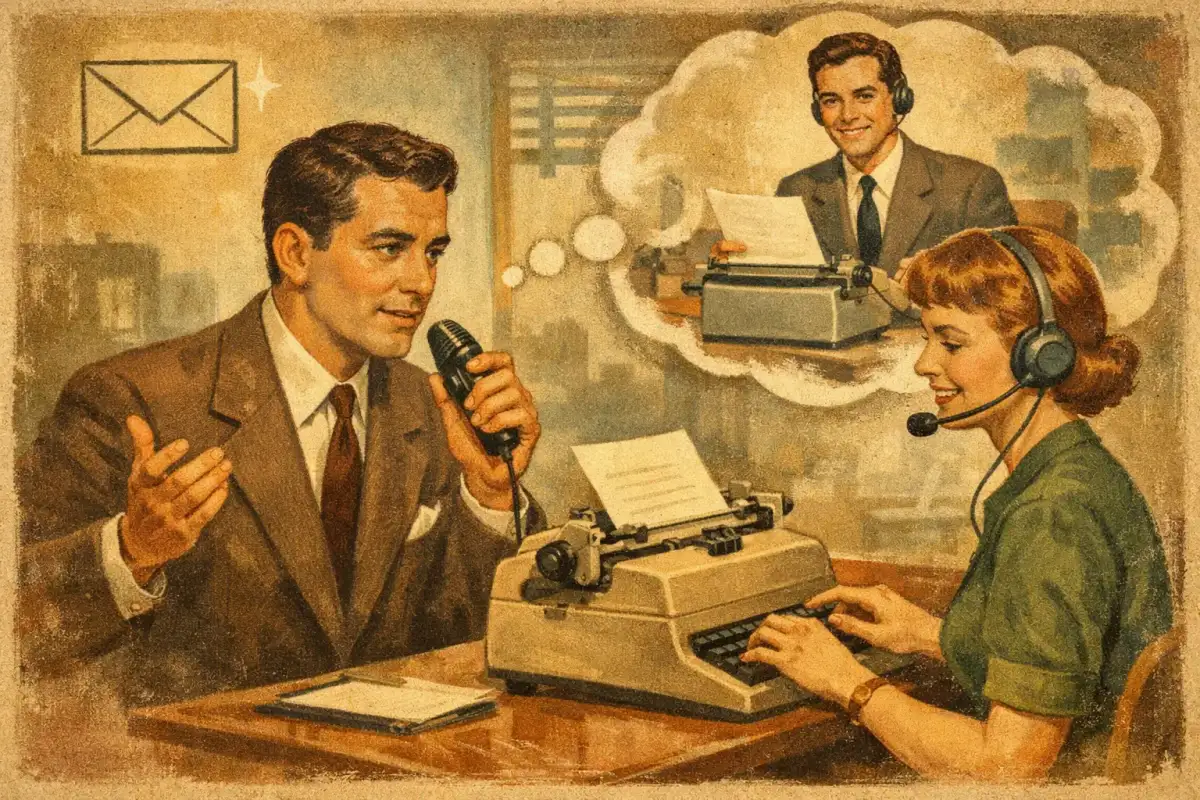
A two-minute email can turn into a twenty-minute typing task when you are trying to get the tone exactly right. You know what you want to say. The friction is turning a fast, spoken thought into something clear, concise, and ready to send. Learning how to dictate polished emails changes that equation: speak at full speed, then apply just enough structure and cleanup to make the message land.
The goal is not to make every email sound formal. It is to make your intent unmistakable. A good dictated email should preserve your voice while removing the filler, false starts, and run-on sentences that naturally appear in speech.
Dictate the Message, Not Every Word
The biggest mistake in email dictation is trying to compose perfect written sentences out loud. That makes dictation feel slower than typing because you are editing before there is anything to edit.
Instead, speak in complete ideas. Give yourself a rough structure before you start: context, decision or request, next step. For a project update, that might sound like: “Hi Maya, quick update on the launch timeline. The design review is complete, and engineering can start implementation on Thursday. Could you confirm the final copy by Wednesday afternoon? Thanks.”
That is already close to a sendable email. You did not narrate punctuation or agonize over every transition. You simply delivered the information in the order the recipient needs it.
When the topic is more complex, dictate a short outline first. Say the purpose of the email, then each point in a separate thought. Pausing between ideas gives speech-to-text tools a better chance to separate sentences, and it gives you a cleaner draft to revise.
For high-stakes messages, do not dictate while you are still deciding what you think. Voice is excellent for expressing a clear position quickly. It is less effective for untangling a sensitive negotiation, performance concern, or legal commitment in real time. Think first. Dictate second.
Use a Polished Email Structure Every Time
Polished does not mean stiff. It means the reader can quickly understand why you wrote, what matters, and what you need from them.
Start with a direct opening. “I’m following up on the contract edits” is stronger than “I hope you’re doing well and wanted to reach out regarding a few thoughts.” If the relationship calls for warmth, add it without burying the point: “Great speaking yesterday. I’m following up on the contract edits.”
Then state the core message in one or two sentences. If there is a request, make it explicit. “Please approve the revised budget by Friday” beats “Let me know your thoughts when you have a chance.” Specificity reduces email loops.
Close with an outcome or a next action. “Once you confirm, I’ll send the final version to the team.” That line gives the recipient a clear reason to respond and shows what happens next.
This structure also improves the transcript itself. Speech recognition performs best when your language is linear and declarative. A clean thought sequence produces less cleanup than a stream of side notes, corrections, and half-finished clauses.
Speak punctuation only when it earns its place
You do not need to say “comma” after every phrase. Most modern dictation tools infer common punctuation from your cadence and phrasing. Overusing verbal punctuation interrupts your flow and can make the draft feel unnatural.
Use spoken commands when precision matters: names, dates, lists, paragraph breaks, subject lines, URLs, or technical terms. A deliberate “new paragraph” is especially useful when an email has more than one topic. It creates visual breathing room before you begin editing.
The same rule applies to formatting. If your email needs a four-item action list, dictate the introduction, then add the list manually or with a formatting command. For a short note, plain paragraphs are usually faster and more human.
Clean the Transcript in One Fast Pass
Dictation gets you to a draft. The polish comes from a focused review, not a complete rewrite.
First, scan for factual errors. Check names, numbers, meeting dates, product names, and any commitment you are making. Speech-to-text can understand the sentence perfectly and still choose the wrong spelling for a client’s name. This is the review step you should never skip.
Next, remove spoken-language clutter. Common examples include “just,” “kind of,” “I wanted to,” “basically,” and repeated openings such as “I think.” These words are not always wrong, but they often weaken a direct request. “I wanted to ask if you could send the report” becomes “Could you send the report?”
Then check the message for tone. Shorter is not automatically better. A note to a teammate can be crisp. A note declining a candidate, responding to an upset customer, or asking a busy executive for help may need a sentence that signals care. The right amount of context depends on the relationship and the stakes.
Finally, read the email once as the recipient. Can they identify the ask without rereading? Do they know the deadline? Does the closing match the tone of the opening? If the answer is yes, send it. Do not spend ten extra minutes sanding down a message that is already clear.
How to Dictate Polished Emails Across Your Mac
The best email workflow is not trapped inside one mail app. You may write in Mail, Gmail in a browser, Slack, a CRM, a support tool, or a document that later becomes an email. Switching tools every time you need voice input creates the same friction dictation is supposed to remove.
A system-wide voice layer works wherever your cursor is. Place the cursor in the compose field, trigger dictation with a hotkey, speak, and receive usable text in the app you are already using. That keeps the workflow simple: thought, voice, polished draft, send.
Vible is built around that model for Apple Silicon Macs. Its on-device processing can turn speech into cleaned-up text quickly, without forcing every draft through a cloud-only workflow. For people handling internal plans, client details, academic work, or sensitive conversations, that privacy-first default matters. Optional cloud features can make sense when you need advanced translation or premium voices, but your basic writing flow should not depend on an upload screen and a wait state.
For multilingual professionals, separate the language decision from the drafting decision. You can speak naturally in the language that lets you think fastest, translate the draft, then review the output for cultural tone and local business conventions. Translation can preserve meaning well, but it cannot always infer whether a recipient expects directness, formality, or a warmer lead-in.
Build a Repeatable Voice Routine
Email dictation becomes reliable when it has a repeatable rhythm. Start with the subject line if it clarifies your intent. A subject like “Approval needed: Q3 budget by Friday” gives your message a built-in focus before you dictate the body.
For routine emails, use verbal templates. You do not need a canned script, just a familiar shape. For example: “Thanks for the update. Here is my recommendation. The next step is. Please confirm by.” Those phrases make it easy to speak quickly without producing vague notes.
For longer emails, dictate in sections rather than one uninterrupted recording. Speak the opening and main point. Review it. Then add background or details. This approach is faster than recovering from a dense 400-word transcript with three different topics folded together.
Your environment matters too. A quiet room and a consistent microphone position improve accuracy, but perfect conditions are not required. The more important habit is speaking at a natural pace. Slowing down excessively often creates strange pauses and makes your writing sound overly scripted. Speak clearly, pause at the end of a thought, and let cleanup tools handle the mechanical work.
Know When Voice Is the Wrong Tool
Voice is not the answer to every email. If you need to compare figures across several tabs, edit a dense spreadsheet reference, or quote exact legal language, typing may be faster. The strongest workflow is not voice-only. It is voice for generating language and keyboard input for precise manipulation.
Likewise, do not send an emotionally charged dictated draft without a cooling-off pass. Dictation captures momentum, which is exactly why it is useful. That momentum can also carry frustration into a message more sharply than intended. Draft it by voice, step away briefly, then review the tone before sending.
The real advantage of dictation is not that it removes writing. It removes the low-value gap between having a thought and getting a credible draft on screen. Start with one category of email you send often, build the habit there, and let your voice handle the first draft while your judgment handles the final word.